
cmux Computer Use
Let Claude Code and Codex control your Mac.
Give AI coding agents access to native Mac apps. Read app interfaces, take screenshots, click controls, and type text with cmux Computer Use.
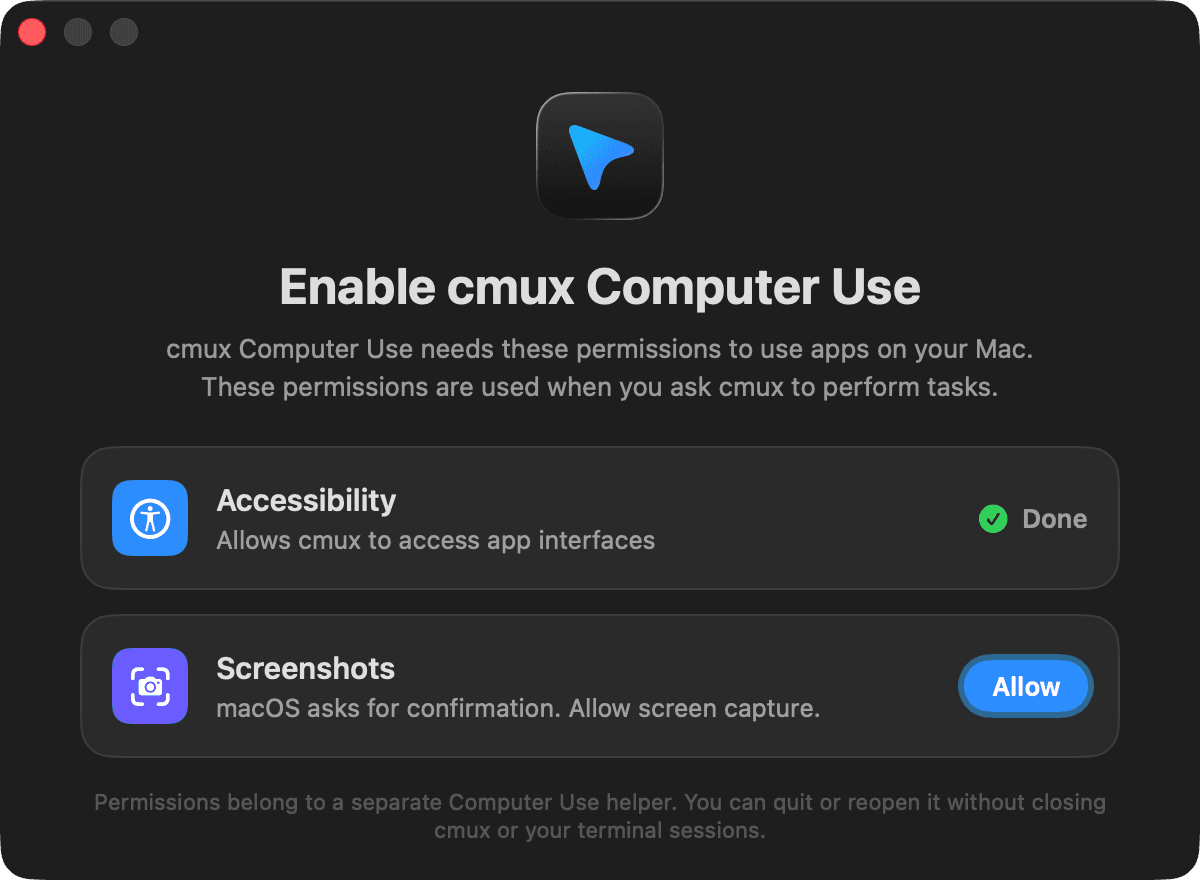
Control native Mac apps
- Inspect app interfaces with accessibility trees and screenshots.
- Click, type, scroll, drag, and use keyboard shortcuts in macOS apps.
- Follow the agent’s visible cursor, inspect the result, and return to its calling terminal.
Your coding agents in cmux
Run Claude Code, Codex, OpenCode, Pi, Gemini CLI, Kiro, Aider, Goose, Amp, Cline, Cursor Agent and other command-line agents in cmux.
Native Computer Use tools attach automatically to Claude Code and Codex sessions launched inside cmux. Other agents can run in the terminal, but do not yet receive this automatic Mac-control integration.
Get started
- Install and open cmux for Mac. In Settings → Computer Use, enable Computer Use.
- Use the permission controls to grant Accessibility and Screen Recording to cmux Computer Use in System Settings. If the helper is missing from the list, add or drag its app tile into the permission pane.
- Start a new Claude Code or Codex session inside cmux. Ask it to use Computer Use and name the app and task. The tools connect automatically; no manual MCP configuration is required.
Copy a Computer Use prompt
Use the $cmux-cua skill for this task. If it is unavailable, install it with your normal skill installer. If permissions are missing, ask me to open cmux Settings → Computer Use. Inspect before acting and verify after each change.

Task: [describe the task here]